Video Demo: Using the Expectation Function expExpress
The Universal Expected Value Function is used to define expected value expressions that describe the relationship between output signals (or local signals) and input signals as well as various parameters, in order to judge whether given signals satisfy the definitions of software requirements.
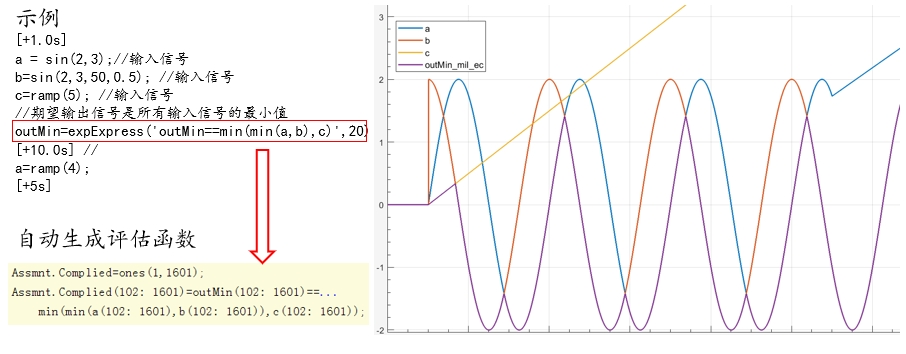
When this function is used in a test case and imported, the system automatically generates an evaluation function for that specific test case, assisting in rapid assessment.
Function Syntax : signal=expExpress(logicExpression,duration,offset)
- Signal refers to an output or local signal in the model.
- logicExpression refers to the logical expression that the signal must satisfy. The expression can include internal MATLAB functions.
- offset refers to the offset value.
- duration refers to the duration.
There are two scenarios when using this function:
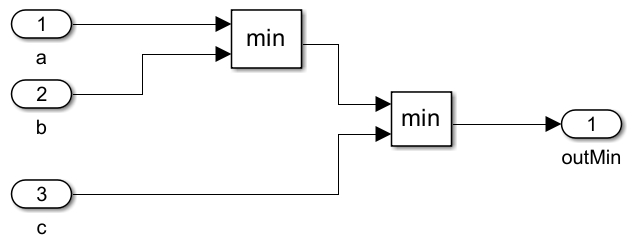
- For Simple Models : For example, there is a requirement to select and output the minimum value from three inputs. A simple model is built based on this requirement, and the relevant logical expression is written in the test case according to the requirement.
- For Complex Models : A simple expression may not be sufficient for complex models. Therefore, a new function file needs to be created. This file must be placed in the same directory as the evaluation function file.
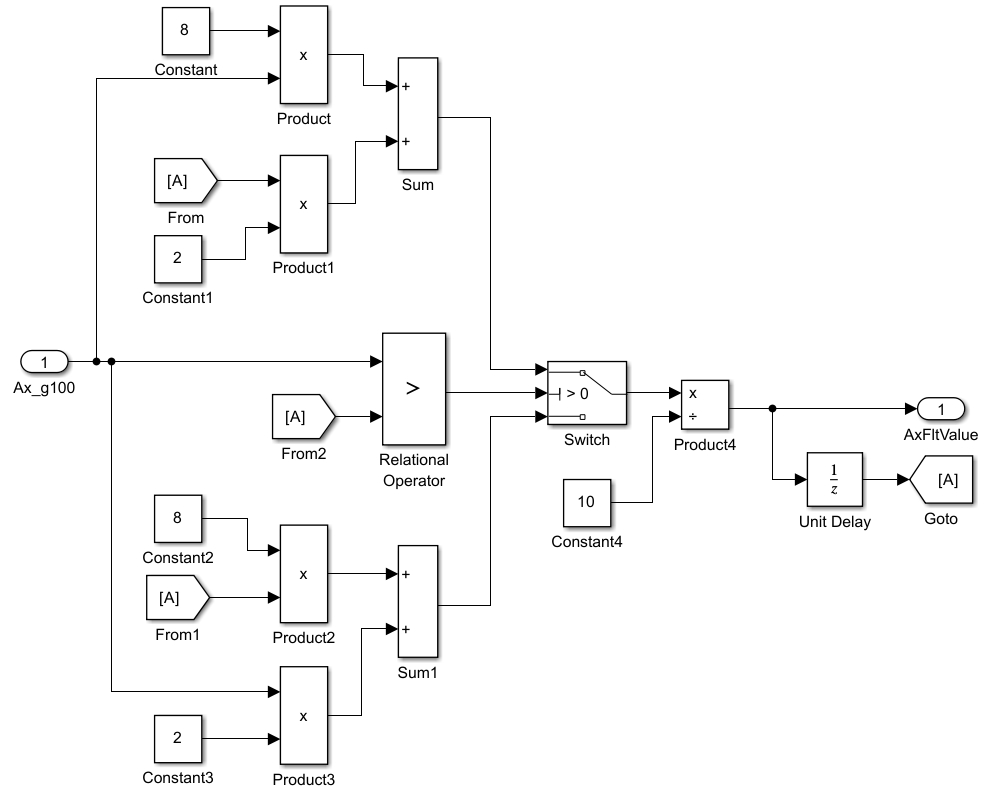
This is the function written based on the requirements :
Calc_axFlt is the function name. When calling this function in the test case, input is the input signal AX_g100, and unitdelay_init is a module parameter variable. In the test case Excel, you need to prefix the parameter variable to be passed with Parameters.. The MQT evaluation framework function passes all parameter values via the Parameter structure variable when calling the evaluation function. res is the output signal AxFltValue.
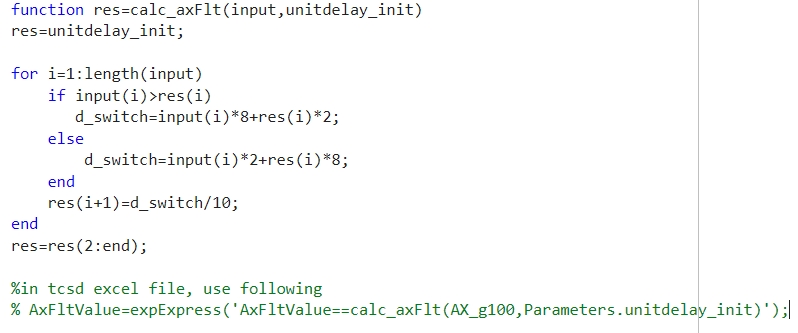
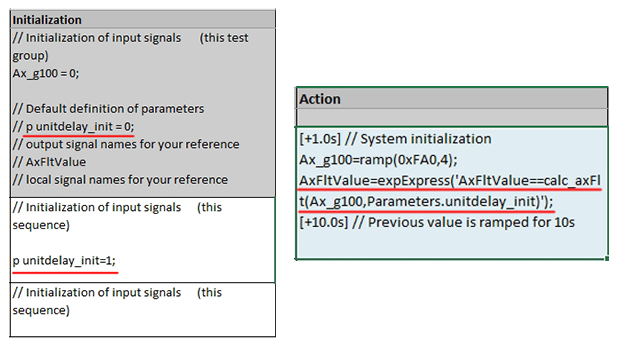
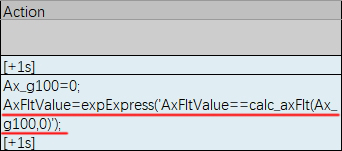
In the test case, the initial value of the module parameter is 0. The first test case sets the module parameter to 1, while the second does not set it, so it uses the default initial value of 0. The Universal Expected Value Function is used in the Action column, and this function is referenced within the expression.
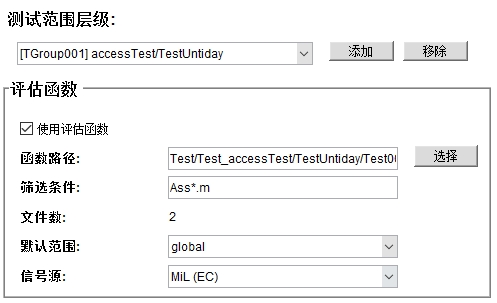
Evaluation function settings must be configured before using the evaluation function.
For accurate assessment, it is best to use the current test group as the test scope level.
- The function path is the save path for the evaluation functions. Select or create a new evaluation function folder under the current test group directory. All subsequently generated evaluation functions will be placed in this directory.
- The filter condition defines the filename filter for evaluation functions under the specified path. For example,
Ass*.mmeans all .m files starting with “Ass” under that path will be treated as evaluation functions. - The default scope is set to Global.
- The signal source should be selected based on the current simulation mode, e.g., MiL(EC).
After completing the settings, import the test cases.
You can quickly locate the path of the evaluation functions via the test group path under the path navigation menu. Clicking on the evaluation function folder allows you to see the automatically generated evaluation function files. The requirement function file must be in the same folder as the evaluation functions.
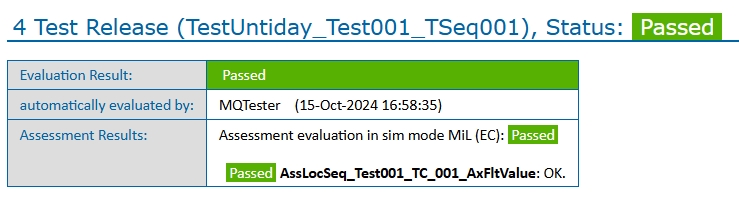
Simulate and evaluate the current test case. The evaluation function column will display Pass or Error. Details can be viewed after generating the test case report.
Evaluation functions can also be used when creating combination test cases.
Navigate to the Test Case – New/Modify Combination Configuration menu.
Write the evaluation function in the cr_config.TS(1).Assessment file.
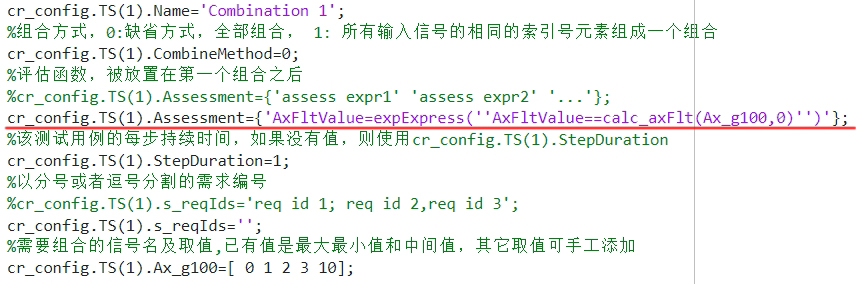
After creating the combination test case, the evaluation function appears in the action.
Similarly, first set up the evaluation function. Under the test scope level of the current test group, enable the use of the evaluation function, select the function path, and create a new evaluation function folder under the current test group’s directory as the evaluation function path.
Set the filter condition to Ass*.m, the default scope to global, and the signal source to MiL (EC).
The steps are the same as before. After importing the test case, simulate and evaluate the current case.
Check Pass/Fail status in the evaluation function column and the test case report.